AI Flashcard Generator: Turn Any URL, PDF, or Video into Cards
Making flashcards by hand is slow. You read an article, find interesting words, open a dictionary, copy translations, type example sentences - and by the time you've made ten cards, the reading session is over. Most people skip it entirely and never turn their reading into lasting vocabulary.
There's a faster way. In Words on Repeat, you paste a URL, upload a file, drop in text, or import YouTube subtitles, and AI extracts vocabulary with translations and example sentences pulled directly from the source material. The cards come pre-loaded with the context you actually encountered the words in - which research shows produces stronger memories than pre-made lists.
This guide walks through all four input methods: URL, text, file upload, and YouTube. Each one follows the same extraction pipeline, just with a different starting point.
What the AI Flashcard Generator Does
The core idea is simple: you give it content in your target language, and AI reads through it, identifies vocabulary worth learning, and creates flashcards with translations and example sentences from that specific content.
The key differentiator from generic flashcard generators: the example sentences come from the content you chose, not from a dictionary database. When you review a flashcard later, you'll remember the article, the topic, the sentence - and the meaning clicks faster.
The extraction supports 20+ languages, auto-detects the source language, and warns you if the content language doesn't match your deck's target language. You control how many words to extract and at what difficulty level.
How the Extraction Works
Understanding what happens behind the scenes helps you get better results from every extraction.
When you submit content - whether via URL, pasted text, uploaded file, or YouTube transcript - the pipeline runs through several stages. First, the system retrieves the raw content. For URLs, it fetches the page and strips away navigation, ads, headers, and footers to isolate the article body. For PDFs and DOCX files, it extracts the text layer. For YouTube, it pulls the subtitle track. The goal is clean, continuous prose in your target language.
Next, the AI identifies the source language automatically. If the detected language doesn't match the target language of your active deck - say, you pasted an English article but your deck is set to Spanish - you'll get a warning before extraction proceeds. This catches mistakes early, like accidentally pasting a bilingual page where the wrong language dominates.
Then comes vocabulary selection. The AI reads through the full text and picks words based on your settings. The word count slider controls how many words to extract - not a maximum, but a target. The AI aims for that number, prioritizing words that appear in meaningful sentences and skipping proper nouns, very short words, and filler. The difficulty level shapes which words get selected:
| Level | What it targets | Best for | CEFR range |
|---|---|---|---|
| Basic | High-frequency, everyday vocabulary that appears across many contexts | Building core vocabulary - the words you need regardless of topic | A1-A2 |
| Advanced | Topic-specific, lower-frequency words particular to the article's subject | Deepening knowledge in specific domains when you already know the common words | B2+ |
| All | Mixed - no difficulty filtering, AI picks the most contextually interesting words | When you're unsure of your level, or want variety - deselect easy words in preview | Any |
For each selected word, the AI generates a translation in your native language and pulls an example sentence directly from the source text. This is the critical difference from dictionary-based generators: the sentence isn't invented or pulled from a generic corpus. It's the actual sentence from the article, video, or document you submitted. When you review the card later, you remember the source - the topic, the argument, the scene - and that contextual anchor makes recall faster. Research on why context-based learning works explains the cognitive science behind this effect.
Finally, the system runs duplicate detection against your existing deck. Depending on your plan, this catches exact matches (Free), morphological variants like "correr" and "corriendo" (Pro), or semantic near-synonyms (Pro Max). Duplicates are flagged in the preview so you can skip words you've already learned.
The entire pipeline runs in a few seconds. What used to take 30 minutes of manual dictionary work - reading, highlighting, looking up, copying translations, writing example sentences - happens automatically, with the added benefit that every card is anchored to content you chose.
Generate Flashcards from a URL
The fastest path from "I found an interesting article" to "I have flashcards."
- Open the AI Extract page and select the URL tab
- Paste the article URL
- Set the word count using the slider (how many words to extract)
- Choose a difficulty level - Basic for high-frequency words, Advanced for topic-specific vocabulary, All for everything
- Click Extract
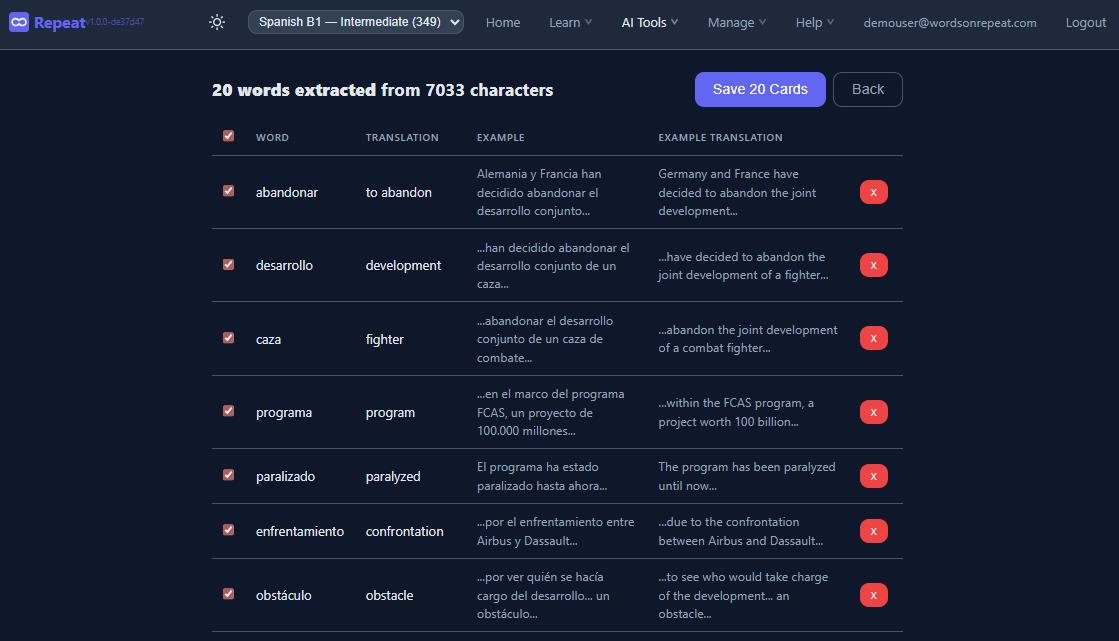
- Preview the results - each card shows the word, translation, and an example sentence from the article
- Edit or remove cards you don't want
- Click Save to add them to your deck
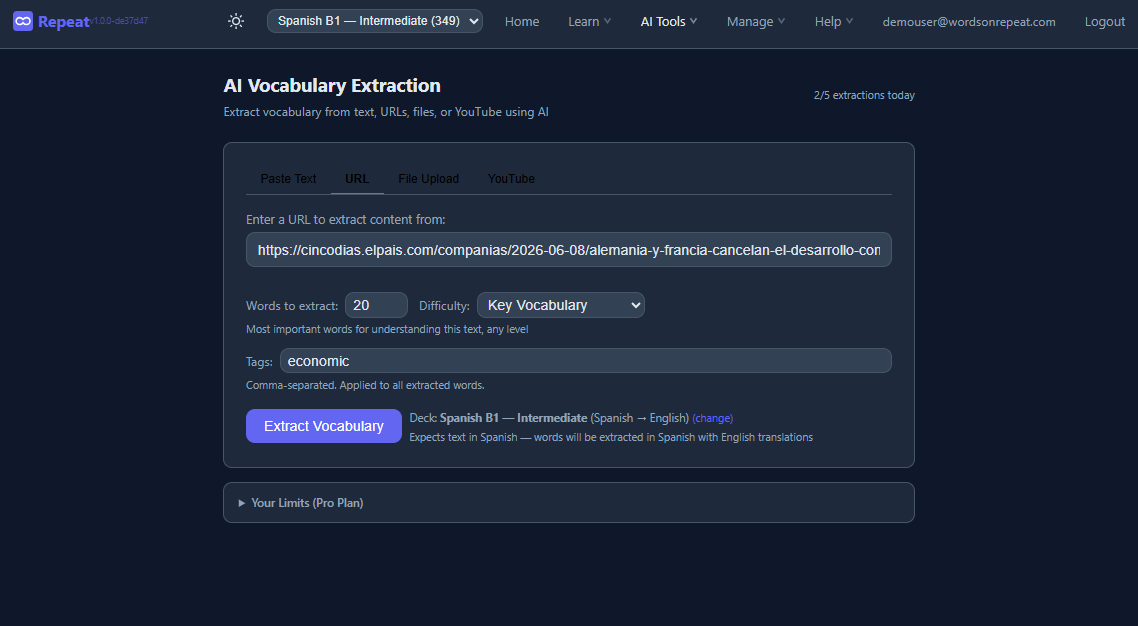
The extraction automatically tags cards with the source domain, so you can filter by source later. Duplicate detection prevents adding words you already have in your deck.
Best for: news articles, Wikipedia pages, blog posts, recipes, product reviews - any publicly accessible web page with text content.
Example: From Article to Flashcards
To make the extraction concrete, here's what happens when you paste a real article URL. Say you're learning Spanish and you find a news article about renewable energy in Latin America. You paste the URL, set the slider to 10 words, and choose "Advanced" difficulty since you already know the basics.
The AI reads the article, skips common words you'd already know ("es", "tiene", "más"), and picks vocabulary specific to the topic. Here's what a typical extraction might produce:
| Word | Translation | Example sentence from the article |
|---|---|---|
| renovable | renewable | "La energía renovable representa el 30% de la matriz energética." |
| eólica | wind (energy) | "La capacidad eólica instalada creció un 15% en el último año." |
| emisiones | emissions | "El objetivo es reducir las emisiones de carbono antes de 2030." |
| inversión | investment | "La inversión extranjera en energía solar superó los mil millones." |
| sostenible | sustainable | "Chile busca un modelo de desarrollo más sostenible." |
Notice what the AI did and didn't do. It skipped "energía" (too basic for Advanced mode), skipped "Chile" (proper noun), and skipped "carbono" (transparent cognate that doesn't need a flashcard). It picked "eólica" - a word most intermediate learners haven't seen, but one that's immediately useful if you're reading about energy. And every example sentence is from the actual article, not a dictionary. When you review "eólica" next week, you'll remember the article about Latin American wind farms, not a generic sentence about weather.
This is also where the preview step earns its keep. Maybe you already know "inversión" from a business context. Uncheck it. Maybe the AI translated "emisiones" as "emissions" but you'd prefer "carbon output" for clarity. Edit it inline. The AI gives you a strong starting point; you refine it in ten seconds.
After saving, the five cards land in your deck tagged with the source domain, ready for FSRS spaced repetition. Your first review is tomorrow, and by then you'll have forgotten the raw translations but still remember the article - which is exactly how contextual memory works.
Generate Flashcards from Text
Sometimes the URL extraction won't work - the site blocks automated reading, the content is behind a paywall, or the text came from a messaging app, email, or somewhere without a URL. That's what the Text tab is for.
- Open the AI Extract page and select the Text tab
- Paste the content - anything from a single paragraph to several pages
- Set word count and difficulty, then click Extract
- Preview, edit, and save - same workflow as URL extraction
This method works well for content from mobile apps (copy text from a chat, paste in Words on Repeat), song lyrics, podcast transcripts you've copied, or text you've typed out from a physical book. There's no URL required - just raw text.
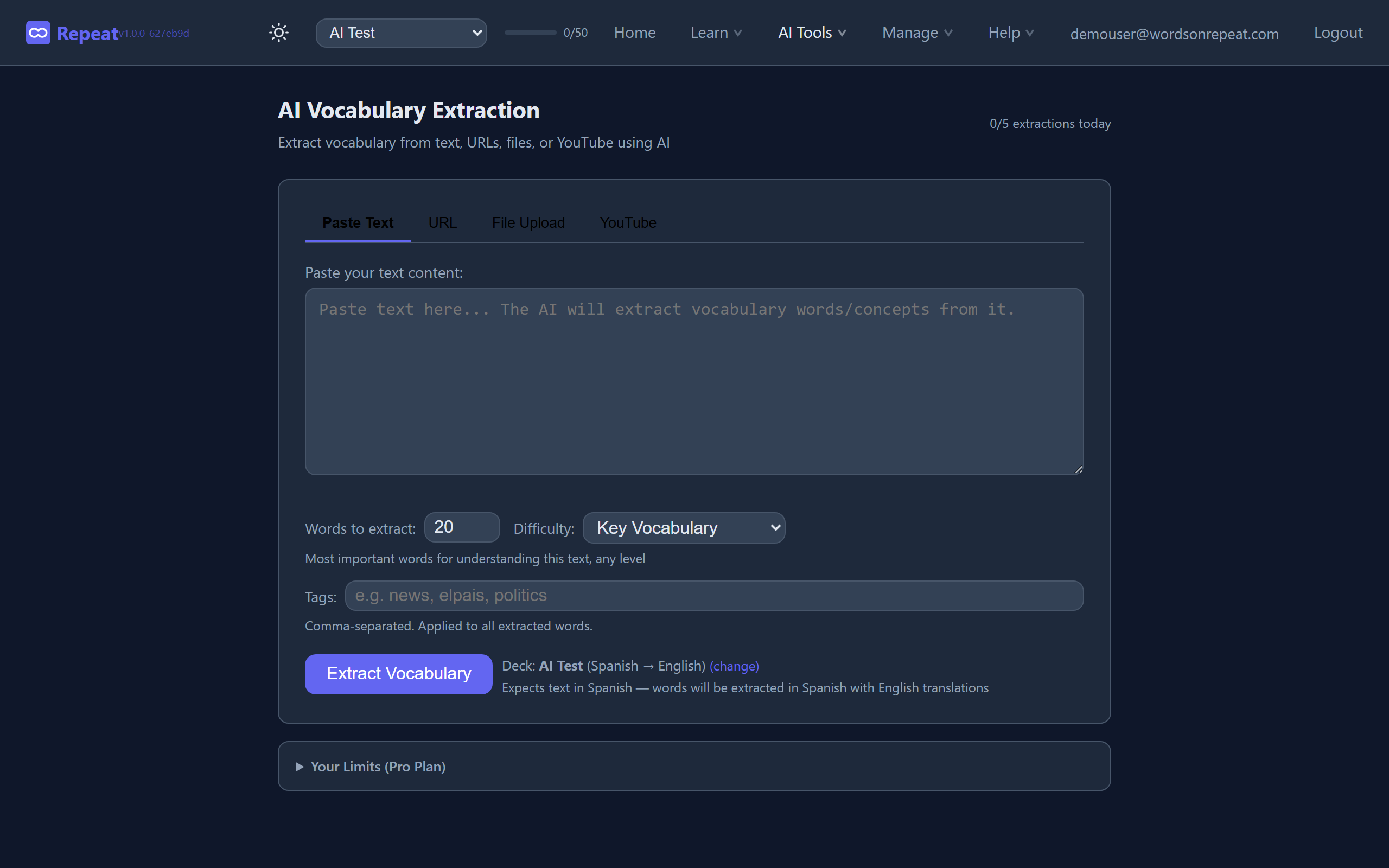
Tip: If a website blocks URL extraction, just select the text on the page (Ctrl+A or Cmd+A), copy it, and paste it into the Text tab. Same result, different path.
Generate Flashcards from a PDF or Document
For longer-form content - textbooks, graded readers, work documents, research papers - file upload is more practical than copying and pasting text.
- Open the AI Extract page and select the File tab
- Upload your file
- Set word count and difficulty, then click Extract
- Preview, edit, and save
Supported file types depend on your plan:
- Free:
.txtfiles only (2 MB max) - Pro:
.txt,.pdf,.docx,.epub(10 MB max) - Pro Max:
.txt,.pdf,.docx,.epub(25 MB max)
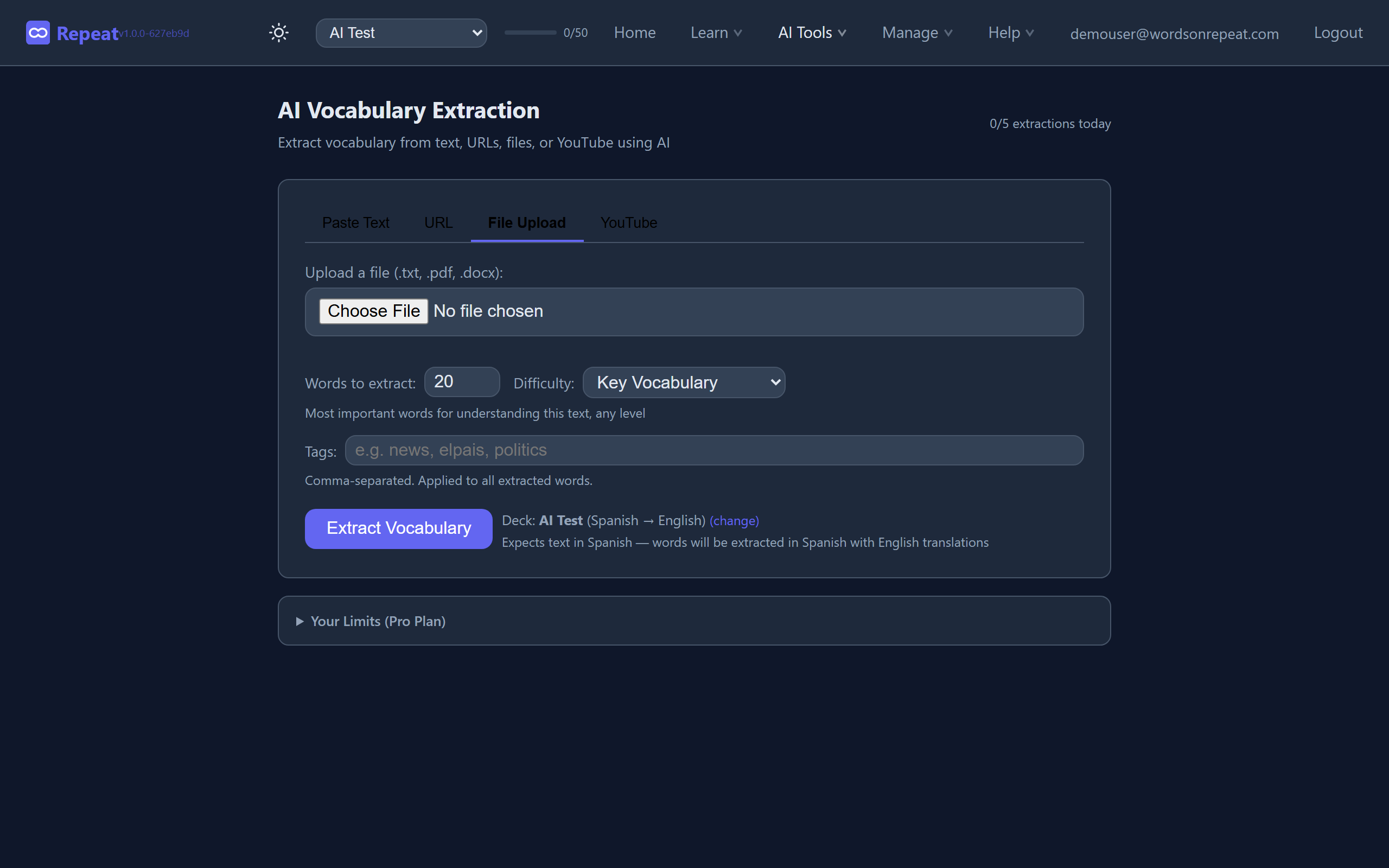
Tips for better results with files:
- Shorter extractions (10-20 words) give higher quality - the AI focuses on the most useful vocabulary instead of scraping everything
- For textbooks, extract one chapter at a time rather than the entire book
- PDF text must be selectable - scanned images without OCR won't work
.epubfiles (e-books) are supported on Pro and Pro Max plans
Import from YouTube
Paste a YouTube video URL into the YouTube tab on the AI Extract page, and the system automatically fetches the video's subtitles and runs the same extraction pipeline. No copying or pasting transcripts required - just the URL.
If automatic subtitle fetching doesn't work for a particular video, the system falls back gracefully: it switches you to the Text tab with instructions to copy the transcript manually from YouTube. You can also always paste a transcript into the Text tab directly if you prefer.
YouTube import is available on all plans: Free (3/month), Pro (3/day), and Pro Max (5/day). For the complete YouTube walkthrough - including tips for choosing the right videos - see How to Import YouTube Subtitles as Flashcards.
Tips for Better Extractions
The AI does a good job by default, but a few choices on your end significantly affect the quality of the cards you get.
Choose the right source material. Not all content produces equally useful flashcards. The best sources have several qualities in common: they're written in natural prose (not bullet points or tables), they cover a topic you genuinely care about, and they're at or slightly above your current level. A news article about a topic you follow works well. A terms-of-service page or a list of product specifications does not - there's no narrative context for the AI to pull sentences from.
Tune the word count slider. More isn't always better. Extracting 10-15 words from a single source gives the AI room to be selective - it picks the most contextually rich words and skips filler. Extracting 40-50 words from the same source forces the AI to scrape deeper, which often means including words that are too common or too obscure to be useful. Start with 10-15 per extraction and increase only if you're working with long-form content (a full book chapter, a 20-minute video transcript) where there's genuinely more vocabulary to cover.
Match difficulty to your level honestly. It's tempting to always choose "Advanced" - it feels more productive. But if you're at A2-B1 level, "Basic" extractions will give you words you'll actually encounter again in other contexts, reinforcing them faster. "Advanced" at that level often surfaces words you won't see again for months, making them harder to retain even with spaced repetition. Use "Advanced" when you're B2+ and the basic words in an article are already familiar. Use "All" when you're unsure - the AI will pick a natural mix, and you can deselect the ones that are too easy in the preview step.
Extract from content you'll return to. The strongest contextual memories form when you re-encounter the source material after studying the extracted words. If you extract from an article you'll never read again, the contextual benefit is weaker. But if you extract from a YouTube channel you watch regularly, a blog you follow, or a textbook you're working through chapter by chapter, you'll naturally re-encounter the words in their original context - and each re-encounter strengthens the memory trace. This is the contextual learning loop in action.
One source, one extraction. Resist the urge to paste text from three different articles into a single extraction. The AI works best with coherent content from a single source - it can identify the topic, select vocabulary that fits together thematically, and pull example sentences that make sense in context. Mixing sources muddies the thematic coherence and weakens the contextual anchoring that makes these cards more effective than generic ones.
Quick Reference
| Tip | Do this | Avoid this |
|---|---|---|
| Source material | Natural prose on topics you care about | Terms-of-service, specs, social media posts |
| Word count | 10-15 per extraction | 40-50 from a single short article |
| Difficulty | Match to your actual level (A2-B1 → Basic) | Always choosing Advanced out of habit |
| Source selection | Content you'll revisit (blogs, channels, textbooks) | One-off articles you'll never re-read |
| Content mixing | One source per extraction | Pasting text from multiple articles together |
Editing and Saving Your Cards
After extraction, you always get a preview table before anything is saved. This step matters - AI isn't perfect, and you should review what you're adding to your deck.
In the preview table you can:
- Check/uncheck individual words - deselect words you already know or don't want to learn right now
- Edit translations inline - fix any AI mistakes or use a different translation you prefer
- Edit example sentences - adjust the context sentence if it's too long or unclear
- Edit tags - tags are auto-generated from the source (URL domain, file name), but you can change them before saving
Duplicate detection prevents you from adding words already in your deck. The detection level depends on your plan: exact match (Free), normalized matching that catches different word forms like "correr" and "corriendo" (Pro), or semantic matching that catches true synonyms (Pro Max).
Free vs Pro
| Free | Pro | Pro Max | |
|---|---|---|---|
| Extractions | 5/month | 35/week | 140/week |
| Words per extraction | 20 | 40 | 50 |
| File types | .txt | + .pdf, .docx, .epub | + .pdf, .docx, .epub |
| Upload size | 2 MB | 10 MB | 25 MB |
| YouTube import | 3/month | 3/day | 5/day |
| Duplicate detection | Exact | + Normalized | + Semantic |
The free tier is enough to try the workflow and see if AI extraction fits how you study. Five extractions per month at 20 words each gives you 100 new contextual flashcards - a solid start. Upgrade when you hit the limits or need PDF support.
See the full pricing breakdown for all plan details.
Frequently Asked Questions
How accurate is the AI extraction?
High quality for major languages - Spanish, French, German, Italian, Portuguese, Polish, and others. The AI occasionally misidentifies parts of speech or picks overly simple words, which is why the preview step exists. Always review and edit before saving. For less common languages, accuracy may be lower but still useful as a starting point.
Can I extract from any website?
Most public websites work. Some sites block automated reading - paywalls, login walls, JavaScript-heavy single-page apps. For those, copy the text from the page and use the Text tab instead. The result is the same; it's just a different path to get the content into the extractor.
What languages are supported?
20+ languages including Spanish, French, German, Italian, Portuguese, Polish, Dutch, Japanese, Chinese, Korean, Russian, Arabic, Turkish, and more. For Japanese, Chinese, and Korean, romanization (romaji, pinyin, romanized Korean) is added to every card automatically.
The fastest way to see if this works for you: open the AI Extract page, paste a URL you were already going to read, and extract 10 words. The whole process takes less than a minute, and you'll have flashcards anchored to content you actually care about. Five free extractions per month - no account required to try it.